Company Setup Wizard
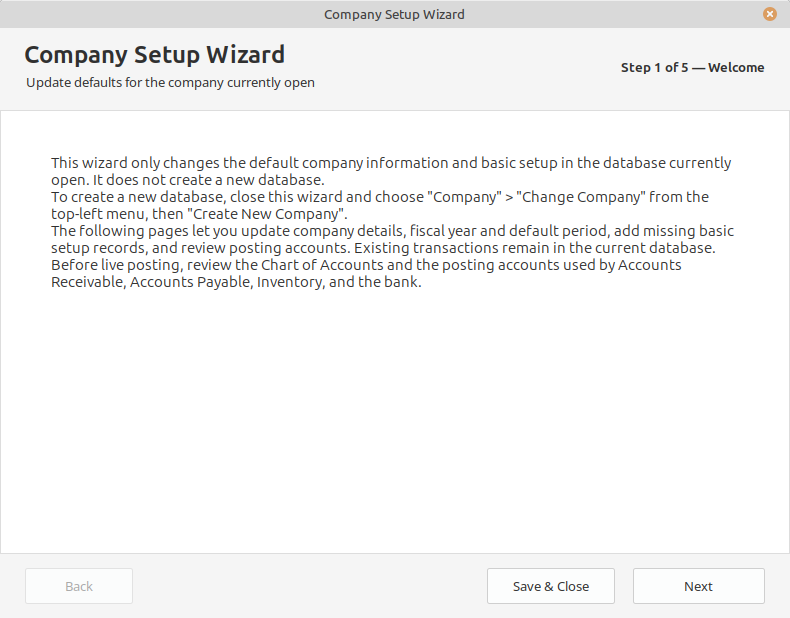
Update the default company information and basic setup in the database that is already open.
What it does
Update the default company information and basic setup in the database that is already open.
Open Company > Company Setup Wizard from the top-left menu. This administrator action is no longer a permanent Main Console button.
Review the current company name, address, fiscal information, starter identifiers, and accounting periods.
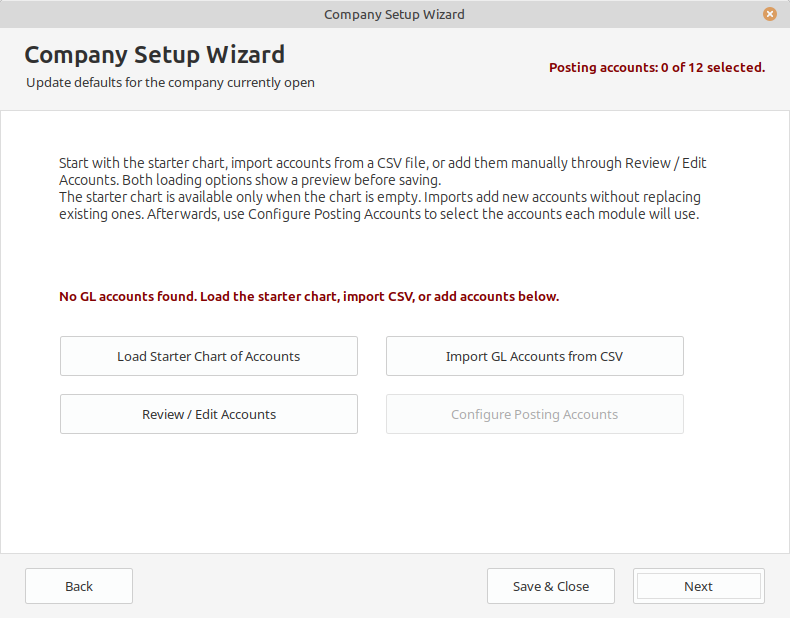
At Step 4: GL Accounts, load the 36-account starter chart into an empty chart, import your own CSV, or use Review / Edit Accounts.
Preview and confirm the accounts before adding them. Then use Configure Posting Accounts to assign the accounts used by automatic posting.
Create the database, then set up the company.
- Open the top-left Company menu and choose Change Company, then Create New Company.
- At Name Your Company Database, enter a name such as AcmeSupply.db. LedgerSL adds the .db extension if needed. Use a new name, not LedgerSL_Empty.db or another reserved template name.
- Choose a local folder in the Save dialog. Existing files are not overwritten. LedgerSL creates and checks a separate copy of the clean template.
- Restart LedgerSL into the selected database and verify the company and file path.
- Use Company > Company Setup Wizard to enter the default company details and complete basic setup in that database.
- At Step 4: GL Accounts, load the starter chart, import a CSV, or review and enter accounts manually. Then configure posting accounts.
The two company actions are in the menu because they are occasional setup tasks. They require administrator access.
A single-location company can use one meaningful location, division, and department. A business with several locations or operating areas can add the detail it needs without changing the accounting workflow.