The Linux installer is available now, with a sample company, a clean company template, and offline help. Install it, choose your database, and set your application password.
Release availability
LedgerSL for Linux is available.
Free, fully functional desktop accounting for one user at a time. “Demo” refers to the included sample company data.
Available now
LedgerSL for Linux
For Linux Mint 22.x and Ubuntu 24.04 on 64-bit Intel and AMD computers. Developed on Linux Mint, with Light and Dark themes supported.
x86-64 processor
Sample company and clean template included
Single-user desktop edition
Version 2026.10.04-1 October 4, 2026 · 7.1 MiB · .deb package
A separate 64-bit Windows package will be added after it has been compiled and tested on a clean Windows installation.
32-bit Windows by request
A 32-bit edition is not ruled out. Because it would require a separate build, libraries, packaging, and testing cycle, it would be treated as paid custom work rather than a free standard download.
Not available yet
Install and connect
Your first start, step by step.
LedgerSL opens a local SQLite database file. You do not need a database server, server address, or port. Your application login is set up after the database opens.
Install the Linux package
Download the .deb above. On Linux Mint, double-click it and use Package Installer. Alternatively, open a terminal in the download folder and run:
The installer adds the application-menu entry and installs missing runtime libraries. Internet access is needed if dependencies must be downloaded. Lazarus and Free Pascal are not required.
Open LedgerSL
Choose LedgerSL from your application menu, or run ledgersl in a terminal. Start it as your normal desktop user, without sudo. Your writable application and data folders are prepared automatically.
Choose the sample database
At LedgerSL First Start, choose Open Demo Company. If you need to locate the file manually, choose Browse for Database... and select:
~/.local/share/LedgerSL/data/LedgerSL_Demo.db
The ~ means your home folder. Press Ctrl+H in the file chooser to show hidden folders, then open .local → share → LedgerSL → data. Select the database in your own home folder, where it is writable.
If a previous company opens directly, use Company > Change Company to choose another database. Follow the restart prompt when changing companies. LedgerSL remembers your selection for the next launch.
Choose your password and log in
In a fresh sample company, the administrator user name is Demo. When prompted, set and confirm your own password of at least eight characters. The message may say Application security has been upgraded; this is expected for the new sample copy.
At Accounting Login, enter Demo and the password you just chose. There is no shared default password. Existing company databases keep their current logins and passwords when you update the application.
Set the accounting date and explore
The sample company contains fictional activity throughout 2026, including dates later than the release date. For a full-year review, choose December 31, 2026 as the accounting date and use January 1 through December 31, 2026 for reports. Choose all divisions to review the whole company.
Sign in as an administrator, then choose Company > Change Company > Create New Company. Enter a name such as AcmeSupply.db, choose a writable local folder, and follow the restart prompt. Create your administrator user and password when the new company requests them.
Use Company > Company Setup Wizard to enter company details. At Step 4: GL Accounts, load the starter chart or import your own CSV, then configure posting accounts and the remaining company settings.
To use an existing LedgerSL company, choose Browse for Database..., select its .db file, and sign in with that company’s existing login. Check the company name and database path before entering transactions.
Close LedgerSL before installing an update and back up your company first. Existing databases, passwords, and settings are preserved. A newer sample is not copied over a sample database you already have. For an earlier ZIP installation, run ledgersl once from a terminal after installing the .deb.
If a database cannot be opened, check the full path, choose your writable home-folder copy, and close any other LedgerSL instance using it. For a dependency check, run ledgersl --check. Help > Support Information shows the database path and diagnostic details you can review before contacting support.
Your company database belongs on local storage, with one active user at a time. Keep backups separately from the working file.
The first LedgerSL release is a straightforward local desktop application. It does not require a database administrator or a separate server computer.
64-bit Intel or AMD
The Linux release is built for x86-64 desktop and laptop computers. It will not run on 32-bit Linux or ARM systems.
Developed on Linux Mint
LedgerSL was developed on Linux Mint, which is also the initial testing platform. Additional distributions will be listed after they are tested.
Writable local storage
LedgerSL needs local space for the program, company database, reports, and backups, with normal permission to write those files.
No database server
SQLite is built into LedgerSL, so there is no separate database service to install, configure, or maintain.
LedgerSL for Linux
Free to use. Suggestions welcome.
The standard Linux version of LedgerSL is free to use. It was developed on Linux Mint for everyday desktop accounting. Have an idea for a useful feature, report, or improvement? We welcome your suggestions.
Tested with Light and Dark themes
LedgerSL has been tested with Linux Mint's default Light and Dark desktop themes, so you can use the appearance you prefer.
Need a report, workflow, or feature tailored to the way your business works? Custom modifications are available. Contact us to discuss your requirements, scope, and pricing.
The package includes two databases. The default database contains sample company data for demonstration purposes only. A separate, otherwise empty database contains just the minimum setup data needed to create your own company.
Use Company > Change Company > Create New Company to create and name your own database from the clean template. Then use Company Setup Wizard to update its details and load a starter chart or import GL accounts from CSV. The wizard works in the database already open.
“Demo” refers to the sample company data. The standard Linux application is free to use. Follow the Start Here guide to explore it and prepare your own company.
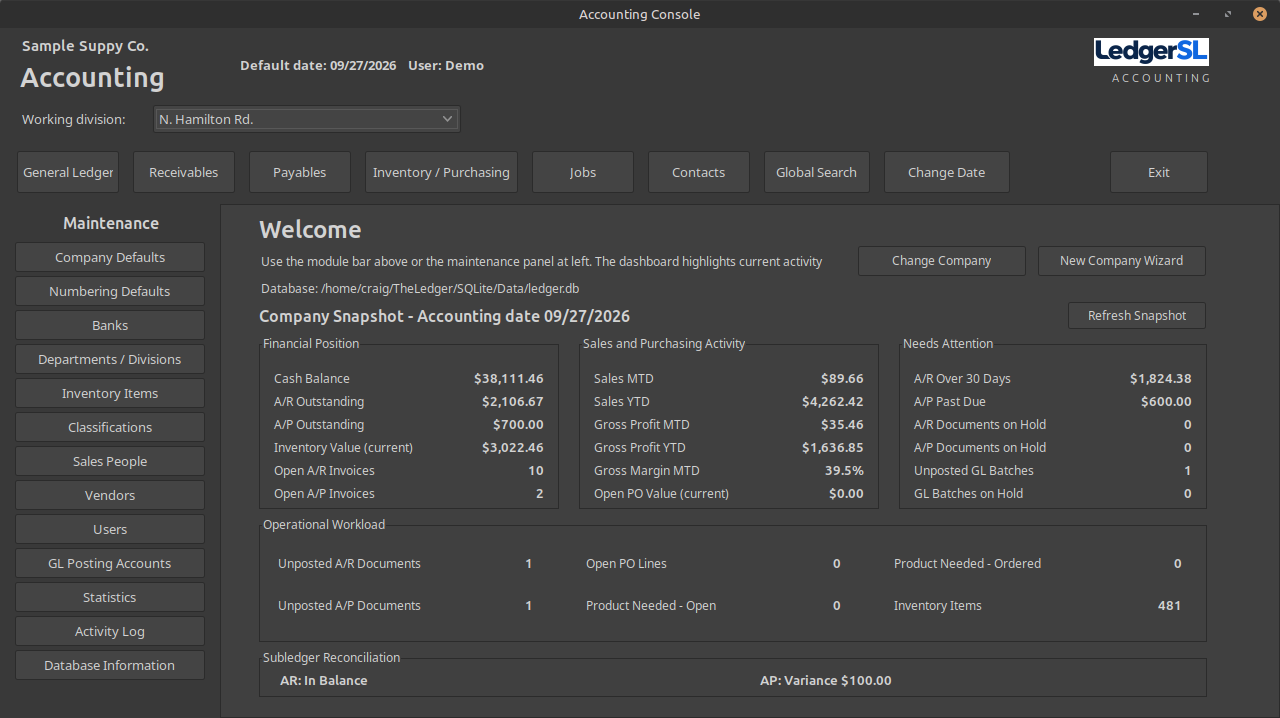
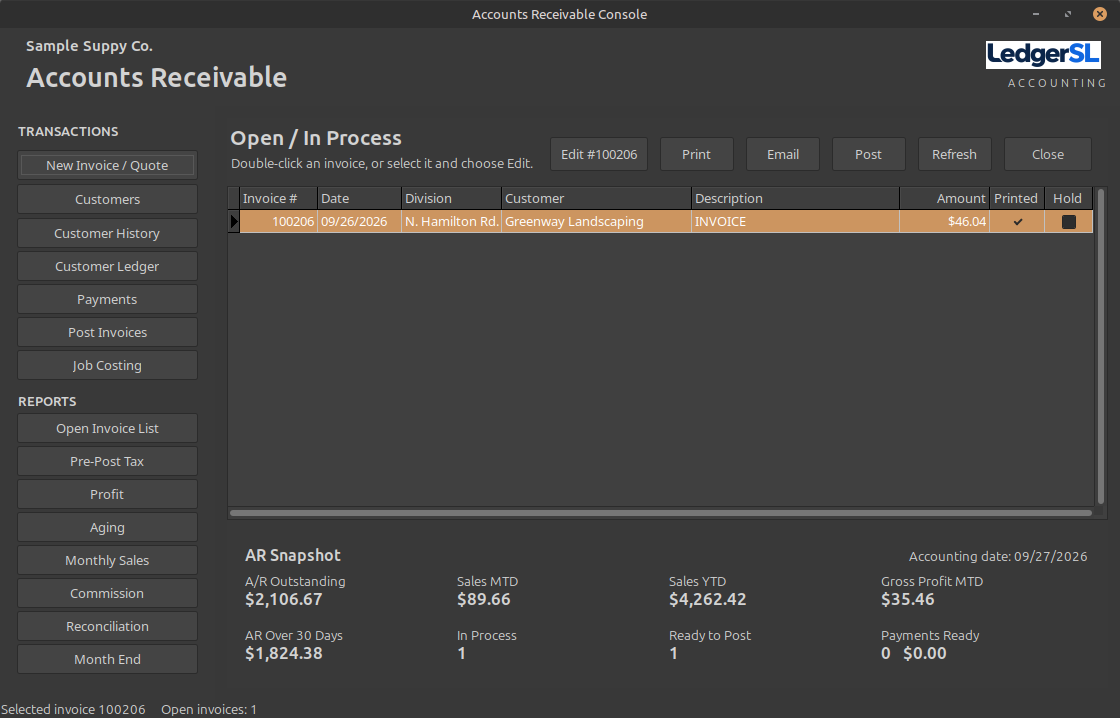
See LedgerSL in the Dark theme.
Linux Mint's default Dark theme, shown with sample company data. The Main Console image shows an earlier build; company switching and setup are now in the Company menu. Select an image to view it full size.
Main ConsoleCompany setup, module navigation, and the company snapshot.Accounts ReceivableOpen invoices, customer tools, reports, and the receivables snapshot.
Available now
The Ledger user manual.
The illustrated manual covers the application, installation, company setup, everyday work, reports, and backups. Revised October 5, 2026, with LedgerSL screenshots and edition notes for LedgerPG. Read the PDF, use the searchable online guide, or keep the HTML guide offline.
Updates preserve existing company databases, passwords, and settings. Back up your company before updating. Removing the application package leaves your databases and personal settings in place.