Set up your GL accounts
Load a 36-account starter chart or bring your own account list into LedgerSL from a CSV file.
What it does
Review account definitions before adding them to the current company, then configure the accounts used for posting.
Open Company > Company Setup Wizard > Step 4: GL Accounts as an administrator.
Use the starter chart when the company has no GL accounts, or import additional accounts from CSV.
Preview the list and fix every validation error before confirming the import.
Existing accounts are preserved. Balances, transactions, and posting-account assignments are not imported.
Prepare your account list.
Export the chart from your previous system, or start with the template below. Replace its three example accounts with your own. Save as UTF-8, comma-separated CSV; export Excel or LibreOffice files to CSV before importing.
The first five fields are required. Optional columns may be omitted or left blank. Columns can appear in any order; use the supported headers below and remove other columns.
| Column | Required? | What to enter |
|---|---|---|
AccountNumber | Required | Text, up to 20 characters. Set the spreadsheet column to Text to preserve leading zeros. |
Description | Required | The account name, up to 60 characters. |
Type | Required | Asset, Liability, Revenue, Expense, or Equity. |
Class | Required | Revenue, Cost of Sales, Operating, or Other. |
Category | Required | Current, Long Term, or Other. |
ParentAccount | Optional | A top-level account number in the current chart or the same CSV; leave blank for a top-level account. |
Suspended | Optional | True/False, Yes/No, or 1/0. Blank means False (active). |
Notes | Optional | Up to 40 characters. |
Choose classifications explicitly; account numbers do not determine them. Spaces or underscores in headers are accepted, such as Account Number. There is no field-mapping screen. Use standard CSV quoting for descriptions containing commas or quotation marks. Each file may contain up to 10,000 accounts and be no larger than 5 MB.
The full import reference also lists database-style header aliases and numeric classification values for existing LedgerSL exports.
Preview, correct, then import.
Open GL account setup
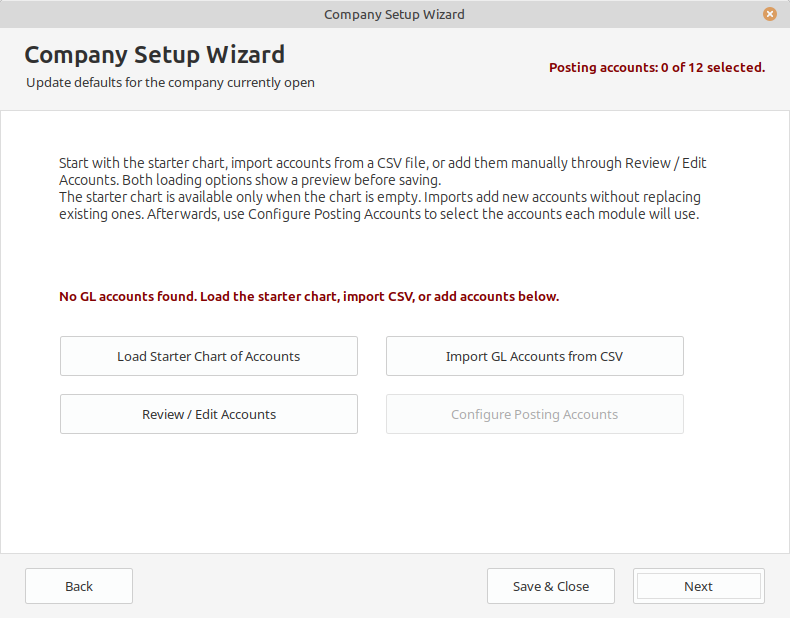
Sign in as an administrator and save or cancel any unfinished edits. Check the active company, open Company > Company Setup Wizard, and continue to Step 4: GL Accounts.
Choose the CSV
Select Import GL Accounts from CSV, then Choose CSV. The window also offers Save CSV Template.
Review every row
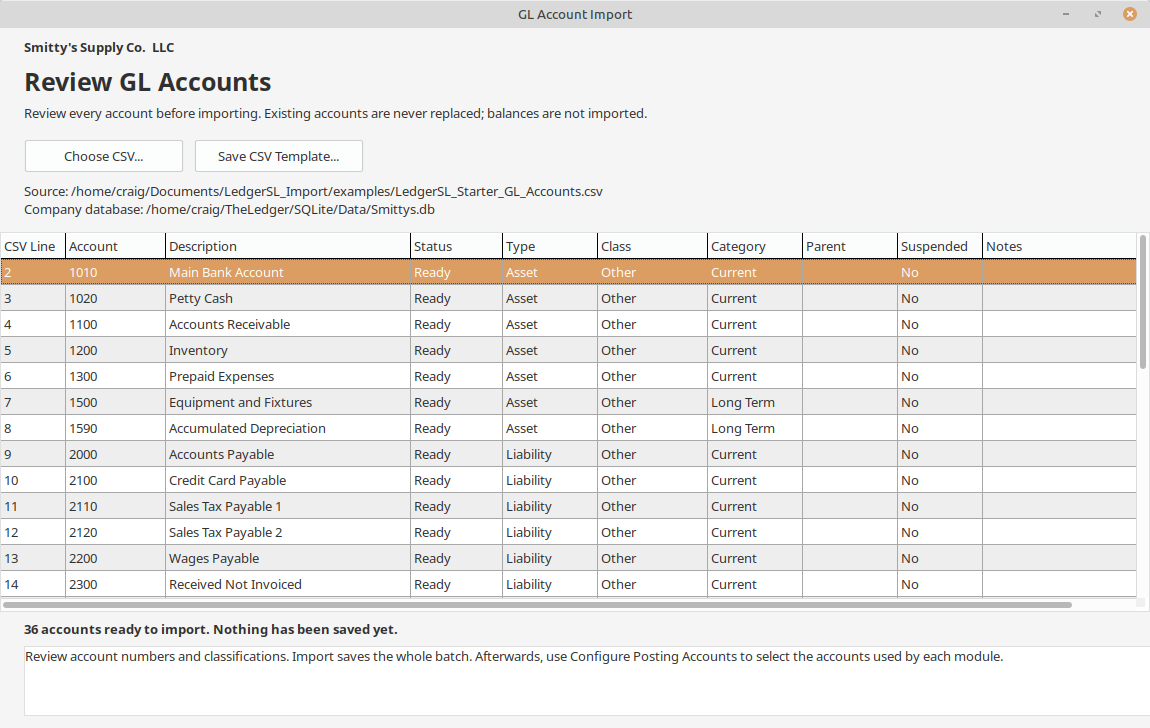
Check the account numbers, names, classifications, parents, and Status column. An exclamation mark identifies an error; select that row to read the full message below the grid. The preview cannot be edited.
Fix errors in the file
Correct the CSV, save it, and use Choose CSV again. Import Accounts stays disabled until every row is valid. Duplicate account numbers in the file or the existing chart are rejected; existing accounts are never updated or overwritten.
Confirm the company and account count
Choose Import Accounts and confirm. LedgerSL checks the chart again and saves the batch together. If an account cannot be inserted, that batch is rolled back. Closing the preview or cancelling confirmation saves nothing.
Finish the posting setup
Use Review / Edit Accounts to inspect the saved chart, then Configure Posting Accounts to choose the accounts used by automatic posting.
Using parent accounts.
A parent must be a top-level account with the same Type as its child. It may already exist or appear anywhere in the same CSV, including after the child. A parent cannot be the account itself or another child account. An active child cannot sit under a suspended parent, and an existing account with journal activity cannot become a parent.
Starting with an empty chart?
At Step 4, choose Load Starter Chart of Accounts to preview 36 common accounts. Review and confirm before they are added. This option is available only when the current chart is empty.
The starter chart is an editable starting point. All accounts begin active, with no parent links, notes, balances, or automatic posting assignments. Review the names and classifications for your business, then configure posting accounts.
The company has a reviewed Chart of Accounts ready for posting-account setup and opening information.