New in LedgerPG · October 17, 2026
Prepare the next transaction from a saved template.
Monthly service invoices, regular supplier bills, and recurring journals can start with the details you already entered. Choose a schedule, preview the due dates, and generate drafts that stay on hold until you review them.
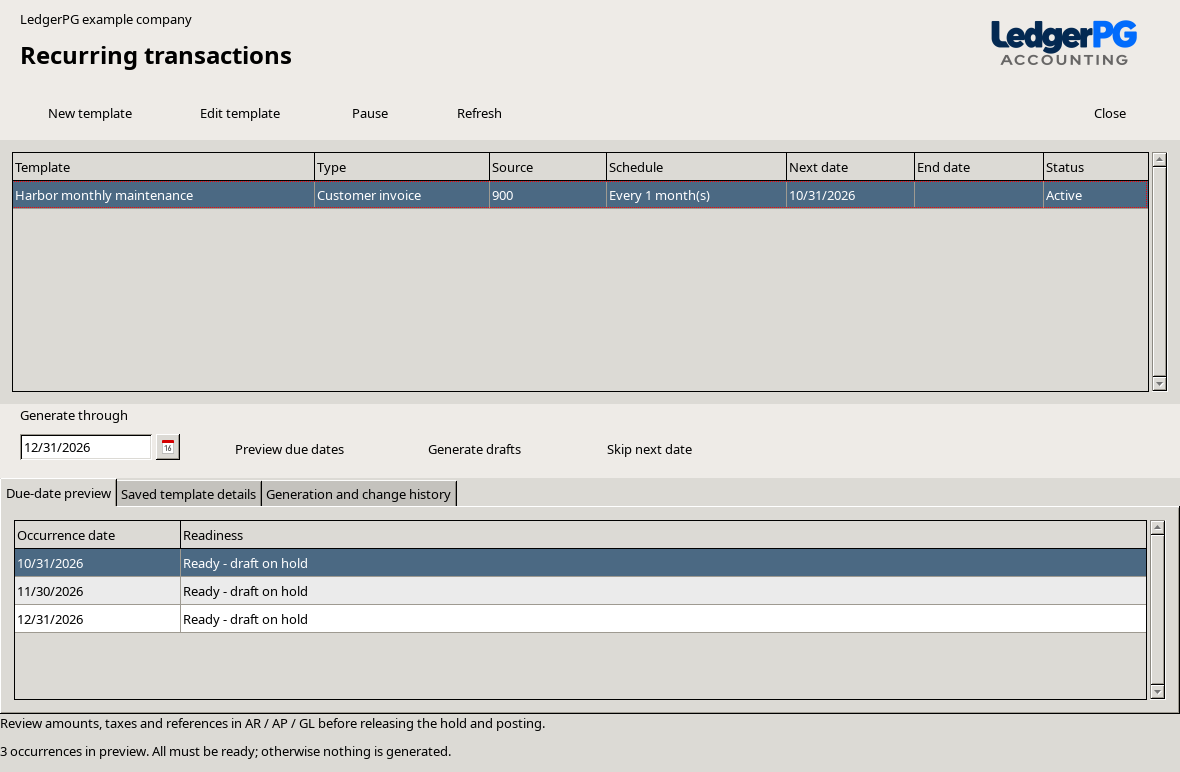
Save the details once, then reuse them.
Choose New template, give it a name, and find a saved source transaction by its number, customer or supplier name, or description. LedgerPG captures a separate copy of its header and lines.
- Customer invoices
- Use fully supplied service and labor invoices without job links. Saved prices, discounts and tax amounts carry into each draft. Stock shipments continue through Order Entry.
- Supplier bills
- Reuse base-currency bills and their account distributions, without purchase-order or job links. Due and discount dates move by the same number of days relative to the new invoice date.
- Manual journals
- Reuse a balanced manual GL journal and its debit and credit lines. Reversal batches and batches generated by other modules are excluded.
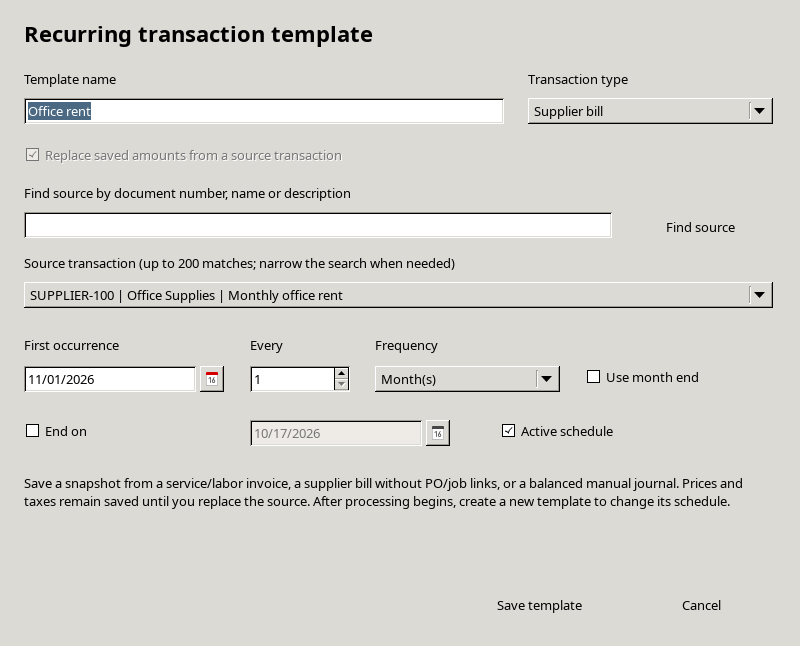
Editing the original transaction later leaves the saved template intact. To update future amounts or lines, save the revised source, then choose Replace saved amounts from a source transaction in the template editor. Review tax amounts when rates change.
Keep the dates predictable.
Choose an interval of 1–120 days, weeks, months, or years, with an optional end date. Monthly schedules retain their original day: January 31 becomes February 28 or 29, then returns to March 31. Use month end places each occurrence on the last day of its month.
Pause, resume, or skip a date.
Pause a template without losing its schedule. Resuming makes missed dates available in the next preview. Skip one occurrence with a reason that remains in history.
Keep a dependable history.
Each generated or skipped occurrence records the user and time. Once processing begins, keep that schedule; pause it and create a new template when the timing needs to change.
Preview first. Review each draft before posting.
Choose a template and a through date.
Select Preview due dates to see the occurrences and any period or validation issue. Process up to 100 occurrences at a time.
Generate the reviewed set.
Choose Generate drafts and confirm the count. Generation happens when you request it; there is no background posting. If any occurrence fails, the whole group rolls back.
Open the drafts in AR, AP, or GL.
Every draft is unposted and on hold. Check its dates, amounts, taxes and references, then release the hold and use the normal posting workflow.
Customer invoices receive new numbers and cleared paid/printed status. Supplier bills receive an R<template>-<date> placeholder reference: replace it with the supplier's invoice number before posting. Generated journals have cleared reversal links and automatic reversal switched off; enable it during review when needed.
Open Recurring transactions from Workspaces.
Restart the updated PG build and choose Workspaces → Recurring transactions. An administrator opens it once per company to initialize the tables. Active users see templates for the accounting modules they can access, within the current working division.
Recurring transactions is implemented in the current PG development build. A public LedgerPG installer is not listed yet. Contact us about trying it.
Explore Collections → · Explore Cash-flow Forecast → · Back to the PG overview