From order to result
One job.
A connected set of records.
A small business supplies and installs shelves for a customer. Here is how that work moves through LedgerSL, and what to check along the way.
Follow the work.
Set up the job
Create a job called Oak Street — shelf installation. Record the customer, site address, contact, agreed work, and useful dates or references in the available fields and notes. Use this job on the customer invoice so its income and stock cost can be reviewed together.
Job setup instructionsOrder the materials
Create a purchase order for 10 shelves at 20.00 each: 200.00 in total. Check the supplier, delivery details, quantities, and costs. Save, print, and post the PO. Posting the order does not add stock or create a supplier bill.
Purchase order instructionsReceive what actually arrives
The first delivery contains 6 shelves. Enter a receipt for 6 into WHSE, then save and post it. Receive the remaining 4 on a second receipt when they arrive. You now have 10 shelves received at a total recorded cost of 200.00.
Partial and final receipt instructionsEnter the supplier’s bill
If the first bill covers only the 6 delivered shelves, enter 120.00 and link it to the PO. Enter the later 80.00 bill separately. Check each against the deliveries. The receipt already added the stock; the bill records what you owe. Follow the PO-linked account instructions in Help to avoid counting the purchase twice.
PO-linked supplier bill instructionsInvoice the customer
Select the Oak Street job. Bill 10 shelves at 35.00 each, supplied from WHSE, plus 150.00 for installation: 500.00 total in this example. Check the quantities, prices, job, and total; save and print. Mark it printed, clear the hold when ready, and post. Payment is recorded separately.
Customer invoice instructionsRecord the customer’s payment
When the customer pays 500.00, create a payment with the correct accounting date and bank account. Apply the full amount to this invoice and check the reference. Save and complete payment posting. Review customer history to confirm that the invoice has no balance remaining.
Customer payment instructionsReview the job and accounting records
The posted invoice supplies 500.00 income and 200.00 stock cost to the job calculation. An additional 80.00 subcontractor cost entered for job tracking gives the result below. Record the actual supplier bill or accounting entry separately: a manual job detail does not create an AP bill or General Ledger batch. Review and post the related GL batches before checking financial reports.
Job tracking and duplicate-cost checks
What did this job earn?
- Customer invoice, before tax
- 500.00
- Cost of the 10 shelves sold
- −200.00
- Additional subcontractor cost
- −80.00
- Job profit in this example
- 220.00
This result reflects the costs recorded for this job. It does not include other business expenses that have not been assigned to it. Do not add the 200.00 stock purchase as another manual job expense: the invoice's cost of sales already supplies that cost.
Keep useful references with each job: customer and site, agreed scope, invoice and PO numbers, delivery notes, important dates, and explanations of extra costs. Clear descriptions make later questions easier to answer.
Check more than the final total.
- Customer history
- Check the invoice, payment, and remaining balance. An aging report helps identify other unpaid customer balances.
- Stock by location
- Check that WHSE increased with the receipts and decreased when the shelves were invoiced and posted.
- Job reports
- Review income, cost of sales, and additional job costs together. Follow a surprising amount back to its source.
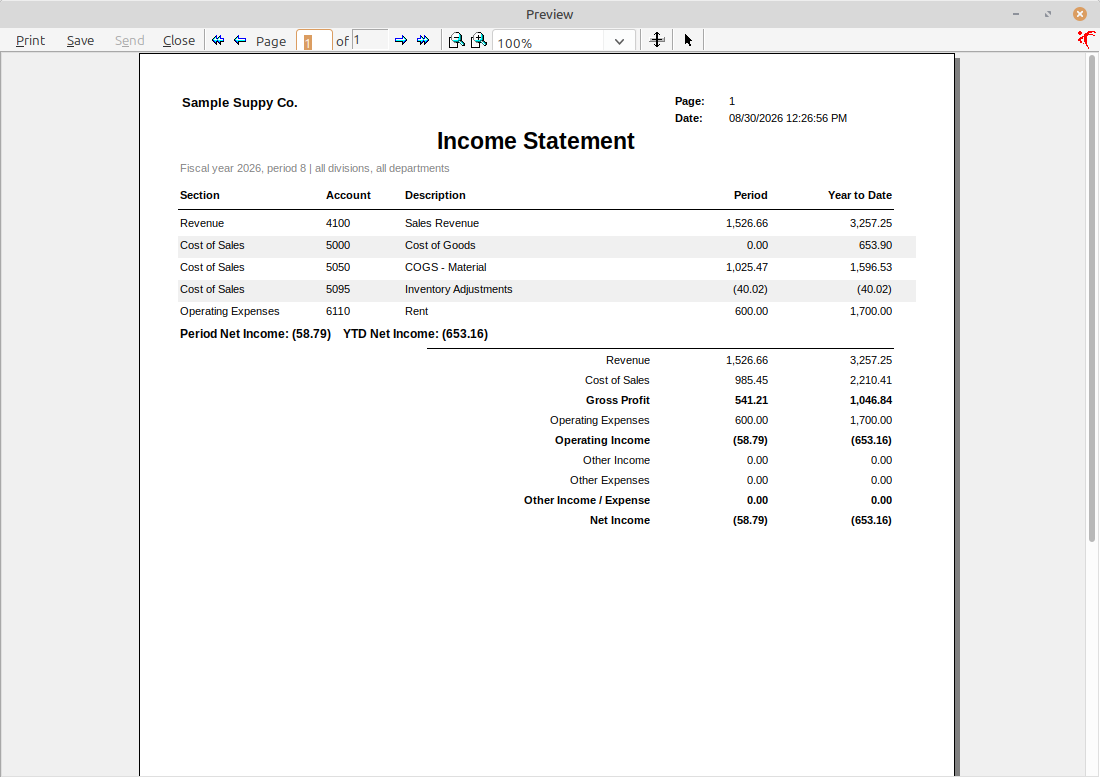
- Income Statement
- Review company revenue and expenses for a period. Check the reporting period and filters, and complete the related GL posting first.
Need the field-by-field steps?
The shared help guide explains invoice entry, purchase orders, receipts, payments, stock locations, and jobs in more detail.
Open Help & Support